Eclectic KDP Composition Notebook Covers: A Practical Guide for Low-Content Publishers
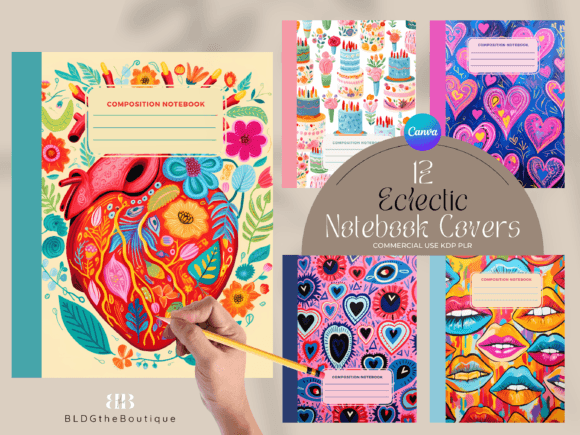
Selling low-content books on Amazon KDP can be a reliable way to generate passive income, but the quality of your covers often determines whether a customer clicks "buy" or scrolls past your listing. The Eclectic KDP Composition Notebook Covers bundle offers a collection of twelve designs formatted for Canva, sized for a standard 7.5″x9.25″ notebook with 110 pages. Before you add this bundle to your cart, there are several practical considerations that can make the difference between a smooth publishing experience and a frustrating one.
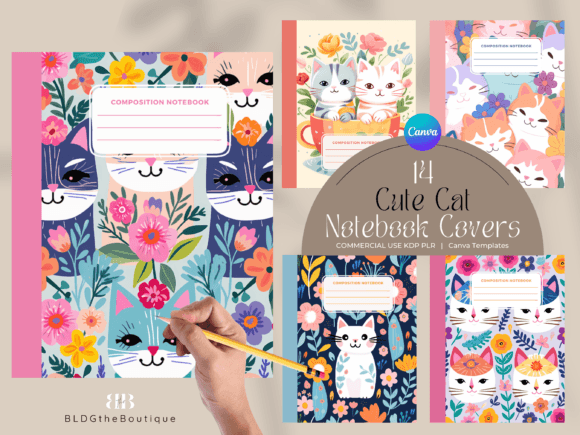
These covers come with both Canva templates and PNG files, giving you flexibility in how you work. The Canva templates are pre-formatted for the front and back cover, with editable label colors, fonts, and spine colors. The PNG files are delivered at 300 dpi and measure 12.3″ x 16.4″. Understanding what this bundle includes—and what it does not—will help you use it effectively and avoid common pitfalls that trip up both beginners and experienced publishers.
Understanding the Canva Template Format
One of the most frequent misunderstandings about this product is assuming it works like a traditional graphic design file. The templates are Canva-based, not SVG or vector files. If you are accustomed to working with Adobe Illustrator or InDesign, you might expect layered vector artwork that can be infinitely scaled and precisely manipulated. That is not what you are getting here.
The Canva templates are designed for ease of use, not for deep customization. You can change the label color, the font, and the spine color. You can resize the template to fit different notebook dimensions. But you cannot edit individual design elements in the same way you would with a vector file. The AI-generated content is baked into the design, meaning the artwork itself is not composed of separate, editable layers.
If you attempt to open these files in a vector editing program expecting to adjust every leaf, pattern, or texture, you will be disappointed. The better approach is to embrace what Canva offers: a straightforward, browser-based editing environment where you can make the essential adjustments quickly. For most KDP publishers, this is more than sufficient. You can change the label to match your brand colors, adjust the font to suit your target audience, and export the final design as a print-ready PDF for KDP.
Checking the Dimensions and Resolution
Another mistake people make is assuming the covers are ready to upload without verifying the dimensions. The bundle is formatted for a 7.5″x9.25″ notebook with 110 pages. The Canva templates are sized at 15.498″ x 9.5″, which accounts for the front cover, back cover, and spine. The PNG files are 12.3″ x 16.4″ at 300 dpi.
If you try to use the PNG files directly without checking whether they match your specific book interior, you may end up with a cover that does not align properly. The 7.5″x9.25″ size is standard, but not every notebook uses the exact same trim size. If you are publishing a different page count, the spine width will change. A 110-page notebook has a relatively thin spine, but a 200-page notebook will require a wider spine to accommodate the extra paper.
What you should do is calculate your exact spine width based on your page count and paper type before finalizing the cover. Canva allows you to resize the template, so you can adjust the overall dimensions. But if you skip this step, you risk uploading a cover where the design does not wrap around the spine correctly, or where the back cover bleeds into the front. KDP's cover calculator is a free tool that helps you determine the precise dimensions you need. Use it every time, even if you think your book is standard.
The Reality of Non-Unique Files
This is an important detail that many buyers overlook: the files in this bundle are not unique. They will be sold to other people. If you are looking for exclusive cover designs that no one else can use, this product is not the right fit. The listing clearly states that files are not unique and will be sold to others. That means another seller could use the same cover for a competing notebook.
Does this matter for your business? It depends on your strategy. If you are testing the market, building a portfolio, or selling low-volume notebooks, non-unique covers can still be profitable. Many KDP sellers use similar designs and differentiate themselves through pricing, keywords, and product descriptions. The key is to customize the editable elements—label color, font, and spine color—so your cover looks slightly different from others who bought the same bundle. A unique color combination or a carefully chosen font can make your listing feel distinct even if the underlying artwork is shared.
However, if you are building a brand and want every product to feel exclusive, you will need to source custom designs or invest in original artwork. Knowing this upfront prevents disappointment later. Check the product description carefully, and if exclusivity matters to you, look for listings that specify "unique" or "custom" designs.
AI-Generated Content and What It Means for Quality
The covers include AI-generated content. This is another detail that deserves attention. AI-generated artwork can look impressive at first glance, but it sometimes has subtle flaws: odd textures, inconsistent lighting, or elements that do not quite make sense. These imperfections may not be obvious on a small thumbnail, but they can become noticeable when the cover is printed at full size.
Before you upload your final design, zoom in on the artwork within Canva. Look for any areas that seem off. Check the edges, the blending between elements, and any text or patterns that may have been distorted. If you spot an issue, you may be able to crop or cover it with the label. If the problem is in a central area of the design, you might need to use a different cover from the bundle or adjust your layout strategy.
The AI-generated content also means you cannot claim copyright on the artwork itself. Your copyright protection applies to the overall arrangement and any original text or branding you add, but the underlying design is not yours to license exclusively. This is standard for AI-generated assets, but it is worth understanding so you do not make incorrect assumptions about ownership.
Exporting for KDP: PDF vs. PNG
The bundle includes PNG files, but for KDP uploads, PDF is the preferred format. Canva makes it easy to export your final design as a PDF. Many users mistakenly upload PNG files directly, which can lead to color shifts, compression issues, or incorrect bleed handling. KDP's guidelines recommend PDF for print books because it preserves vector elements and ensures consistent color reproduction.
After you finish editing your cover in Canva, export it as a PDF Print file, not a standard PDF. This option preserves the high resolution and includes bleed settings. Your PNG files can serve as a backup or for digital previews, but for the actual print submission, use PDF. This one step can save you from receiving a proof that looks washed out or misaligned.
The Canva Account Requirement
To access the Canva templates, you need a free Canva account. This is straightforward, but it is easy to overlook if you are not familiar with Canva. Some buyers purchase the bundle and then realize they cannot open the template files directly. The templates are shared via a Canva link, not as downloadable file formats that open in other software.
Create your Canva account before you buy, or immediately after. The free tier is sufficient for editing these covers. You will not need a Canva Pro subscription to change colors, fonts, or export as PDF. However, if you want to use premium elements or specific stock photos from Canva's library, a Pro account may be necessary. For the basic editing described in the product listing, the free account works fine.
Customization Tips That Make a Difference
The editable elements—label color, font, and spine color—are your primary tools for differentiation. Many buyers leave the default settings unchanged, which means their cover looks identical to dozens of others. Spend a few minutes choosing a color palette that matches your target audience. For a journal aimed at artists, warm and vibrant colors may work well. For a professional planner, muted tones and clean sans-serif fonts are more appropriate.
The spine color is especially important because it is often the first thing a customer sees when a book is shelved. A spine that clashes with the cover design can hurt the overall impression. Use Canva's color picker to sample a color from the cover artwork and apply it to the spine. This creates a cohesive look that feels intentional.
Font choice matters more than most people realize. Avoid decorative fonts that are hard to read at small sizes. Stick with clean, legible typefaces for the label text. You can always add a decorative touch with the artwork itself. The label should be easy to read at a glance, especially since composition notebooks are often used by students or professionals who need to quickly identify their notebook on a shelf.
What to Check Before You Buy
Before you add this bundle to your cart, review the product description thoroughly. Confirm that the cover size matches your intended notebook. If you plan to publish a different trim size or page count, make sure you are comfortable resizing the Canva template yourself. Check that the non-unique nature of the files does not conflict with your business goals. Understand that AI-generated content means the artwork may have minor imperfections, and that you are responsible for reviewing the final design before publishing.
Also consider your skill level with Canva. If you have never used Canva before, the learning curve is minimal, but you will need to spend an hour or two familiarizing yourself with the interface. The product listing does not include tutorials, so you may need to search for basic Canva guides on your own. For most people, this is a small investment of time that pays off quickly.
Practical Workflow for Best Results
Here is a simple workflow that avoids the most common mistakes. First, create your Canva account if you do not already have one. Second, download the PNG files as a backup, but plan to use the Canva templates for your final design. Third, calculate your exact cover dimensions using KDP's cover calculator, including the spine width for your specific page count. Fourth, open the Canva template and adjust the size to match your calculations. Fifth, customize the label color, font, and spine color to differentiate your cover. Sixth, export the final design as a PDF Print file. Seventh, upload the PDF to KDP and order a proof before publishing in quantity.
This workflow takes less than an hour for the first cover, and even less time for subsequent covers since you will already be familiar with the template. The twelve covers in the bundle give you enough variety to test different niches without committing to a single design.
Final Thoughts on Making This Bundle Work for You
The Eclectic KDP Composition Notebook Covers bundle is a practical tool for anyone who wants to sell low-content books without investing in expensive design software or hiring a professional designer. The key to success lies in understanding what the product offers and what it does not. It offers convenience, flexibility, and a quick path to a print-ready cover. It does not offer exclusivity, vector-level customization, or unique artwork.
By checking the dimensions, customizing the editable elements, exporting correctly, and reviewing the AI-generated artwork for flaws, you can produce covers that look professional and sell well. Avoid the common mistakes of assuming the files are unique, skipping the verification of trim size, or uploading PNGs instead of PDFs. With a little attention to detail, these covers can become a reliable part of your KDP publishing workflow.