Calligraphy Writing Paper: A Practical Guide to Process and Integration
What Calligraphy Writing Paper Really Is
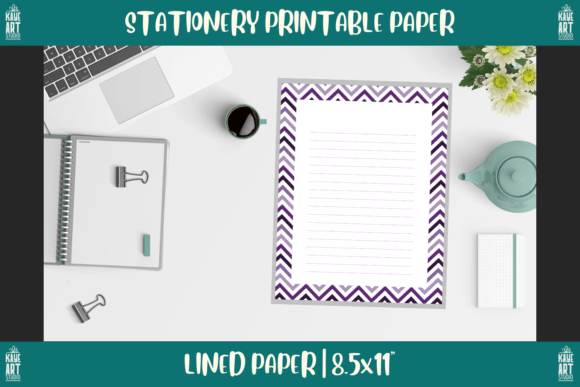
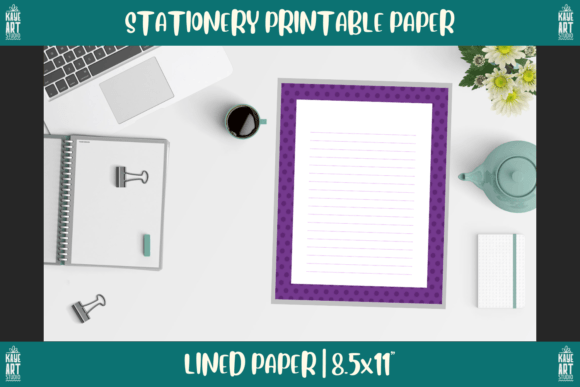
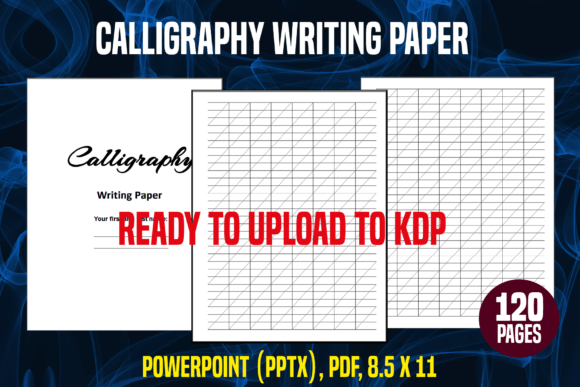
Calligraphy writing paper, in this context, is a complete interior package designed for both print and digital use. It consists of 120 pages at a trim size of 8.5 x 11 inches, provided as a high-resolution PDF ready for upload to KDP or direct printing, and an editable PowerPoint (PPTX) source file. This combination transforms a simple blank sheet into a structured resource you can customize, reuse, and integrate into real creative and business workflows.
The pages serve as a consistent guide for letterforms, spacing, and alignment. Whether you are a professional calligrapher, a self-publisher preparing a workbook, or a hobbyist practicing strokes, the interior gives you a reliable baseline. The high-resolution lines reduce print blurring and ensure crisp edges, which matters when you are working with fine nibs or scanning the final piece.
How This Resource Fits Into a Creative Workflow
Calligraphy writing paper is not a standalone tool. It works within a larger process that includes planning, execution, review, and delivery. Understanding where it fits during each phase helps you avoid wasted time and inconsistent results.
Before a Project: Preparation and Planning
Use the paper to sketch layout options, experiment with line spacing, and test ink behavior. The PPTX file lets you modify the grid style, line thickness, or even add margin guides before printing. For a wedding invitation set, for example, you can create multiple design variations on screen, print a few test pages, and finalize the structure before committing to the full run.
During Execution: Consistent Practice and Final Drafts
The 120 pages provide enough room for sustained practice or a medium-length project. The consistent 8.5 x 11 format works with standard folders, scanners, and binders. You can write on the paper with any pen, brush, or nib, and the guidelines keep your letter heights uniform across sessions. This is especially useful when creating multiple pieces that need to match, such as place cards or certificate templates.
After Completion: Digitizing and Delivery
Scan your finished calligraphy and use the PPTX source to overlay text corrections, add digital flourishes, or adjust brightness. The PDF interior is already set for KDP upload, so if you are publishing a calligraphy workbook or practice pad, you can use the file as-is or customize the cover through the same workflow. This seamless handoff from analog to digital saves hours of reformatting.
Practical Implementation Tips
- Print a test page first. Every printer handles resolution differently. Check that the lines are sharp and the margins align with your intended bleed area. Adjust printer settings to “high quality” and uncheck “fit to page” to maintain the exact 8.5 x 11 trim.
- Use the PPTX for custom spacing. If you need wider lines for large brush pens or tighter ones for pointed pen practice, open the PowerPoint file, adjust the line spacing or line weight, and regenerate a PDF. This flexibility eliminates the need to buy separate pads for different styles.
- Organize by project or skill level. Print 10–20 pages at a time for current practice. Keep the remaining file saved digitally so you can print fresh sheets on demand. Use a three-ring binder or spiral binding to create a custom practice book.
- Match paper quality to your medium. The interior is designed for standard printer paper, but you can print it on heavier cardstock or smooth calligraphy paper. Test a few sheets with your preferred ink to avoid feathering or bleed-through.
For a Freelance Calligrapher Preparing a Client Project
You receive an order for a set of custom place cards. Open the PPTX, adjust the grid to a 2-up layout, and print five pages. Use the first page for rough drafts of the names. After finalizing the style, print another set on high-quality paper for the final cards. Scan the completed set, use the PDF as a reference for digital proofs, and deliver both physical and digital versions. The 120-page count ensures you have enough sheets for revisions without reprinting the whole file.
For an Educator or Workshop Leader
You run a weekend calligraphy basics class. Print 30 copies of the interior (or selected pages) beforehand. The consistent lines help beginners focus on stroke shape rather than drawing their own guides. After the class, share the PPTX file with students so they can print more practice sheets at home. This reduces your prep time and gives attendees a take-home resource that matches exactly what they used in class.
For a Self-Publisher Creating a Practice Workbook
You want to publish a calligraphy practice book on KDP. The PDF interior is already formatted with the correct trim size and page count. Upload it directly, design your cover, and you have a product ready in hours. If you prefer to add introductory text or numbered exercises, edit the PPTX file to insert instructions on each page before exporting to PDF. This workflow eliminates the need to hire a formatter for a simple lined interior.
Ensuring Consistency Across 120 Pages
When you work with a multi-page resource, small inconsistencies can grow into major problems. Print a few sheets from the beginning, middle, and end of the file to verify that line thickness and position remain uniform. If you make changes in the PPTX, apply them to all slides or use the master slide to propagate edits instantly. For long projects, keep a physical reference sheet pinned near your workspace so you can check your letter size and slant against the original guide.
Quality control also applies to the digital side. Before uploading to KDP, run the PDF through a preflight check to confirm bleed margins, text areas, and resolution. The high-resolution interior (typically 300 DPI) avoids pixelation when printed, but confirm your export settings match the original.
Long-Term Organization and Archiving
After you finish a project or practice session, file the used pages by date or style. Store them in clear sleeves inside a binder, or scan them and save as PDFs alongside the editable source. The PPTX file remains your master template. Over time, you can build a library of customized versions—one for pointed pen, one for brush lettering, one with angle slants—each derived from the same base interior. This approach reduces redundant work and keeps your resources consistent.
Making the Most of Editable Source Files
The PowerPoint file is not just a backup. Use it to change line color from light gray to blue for visual contrast, add page numbers, or insert a watermark with your name. You can also remove guidelines on some pages to create a “free practice” section within the same file. Because PPTX is widely compatible, you can open it on Windows, Mac, or even online tools like Google Slides (with minor adjustments). This flexibility makes the interior suitable for team projects where multiple people need to adapt the layout.
Integrating Calligraphy Writing Paper Into Your Routine
The most efficient way to use this resource is to see it as a bridge between planning and output. You do not need to draw your own guidelines each time, and you do not need to reformat from scratch when moving between print and digital. Use the printed pages for hands-on work, and keep the digital source open for quick edits. Whether you are writing a single envelope or preparing a full book, the combination of ready-to-use PDF and customizable PPTX saves you from repetitive setup tasks. The 120-page count gives you room to make mistakes, iterate, and still have enough sheets for the final version. Integrate it early in your process—before you pick up your pen—and you will spend less time on formatting and more time on the letterforms themselves.